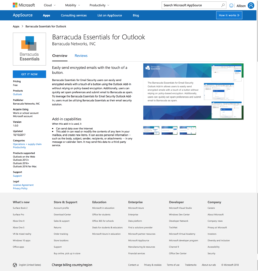
Empowering end users to secure their email communication in one of the world’s most popular email clients.
Barracuda Email Security Service is a Software as a Service web application that provides comprehensive security for email. The email security portion of the product is a cloud based version of Barracuda’s flagship spam firewall hardware appliance that was originally released in 2003.
In recent years business have been migrating their on premise email security solutions to the cloud. This change brought up a number of concerns with our user base around giving end users more ability to take security of their communications into their own hands.
Understanding the Problem.

The spam firewall appliance had been around for over a decade and in that time an Outlook Plug-In had been created to allow for users to control some of their own functionality directly in the Outlook desktop client. As more and more users were transitioning to the SaaS version of email security they were looking to have the same features that they were used to with the appliance.
A large number of administrators were asking for a Outlook Plug-In that would allow their email users to:
- Encrypt emails on the fly
- Whitelist email addresses
- Block email addresses
- Report emails that were considered spam
Conducting Research.
After looking through the many instances of requests for this feature I decided to reach out to some of the requestors to inquire further into why they wanted this feature and how they see their end users utilizing it.
Feature Parity – One of the largest themes seemed to be that admins were hesitant about moving to the SaaS version of the product because of the feature parity. Some of these admins had worked the Outlook Plug-In into their day to day process and had trained their users to utilize it in certain ways. Not having that functionality was a deal breaker as these admins would have to retrain and change their end users already established processes.
End User Ease – The appliance Outlook Plug-In had given their end users an easy way to conduct some tasks within an environment that they were familiar with already. Admins felt the current existing end user interface in the product was too complicated for their users.
OS Compatibility – The previous version of the Outlook plug-in had been built for windows only. Since more and more organizations have been adopting the Apple ecosystem in the last decade they wanted a version that would work on that OS as well.
I also conducted some interview sessions with our sales engineers and confirmed that the above were major concerns they had when trying to either sell to a new customer or helping a customer transition to the SaaS version.
What makes an Outlook Add-In Successful?
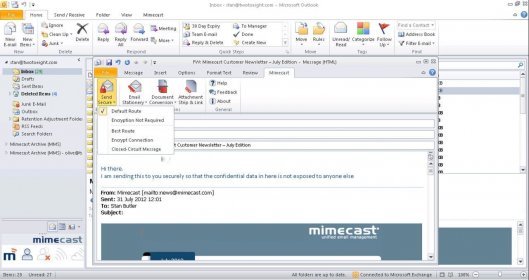
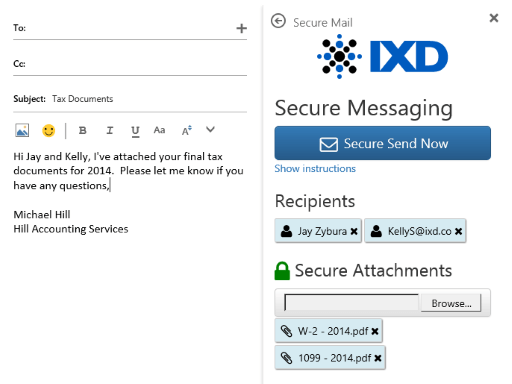
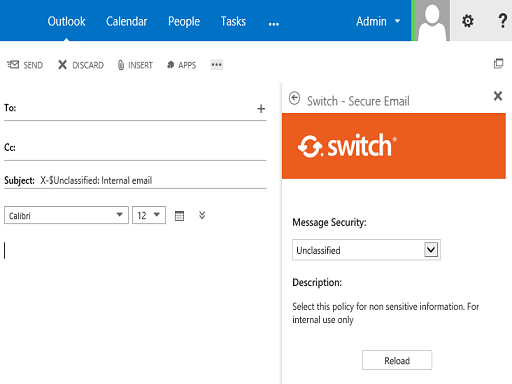
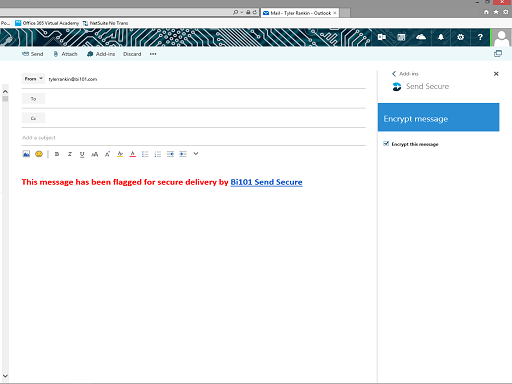
Since I was unfamiliar with designing for an Outlook Add-In I set out to look at what was available in the Microsoft Add-In store and see what a popular and highly rated plug-in looked like. I downloaded a number of these and observed the UI patterns and how they functioned.
The Design Process.
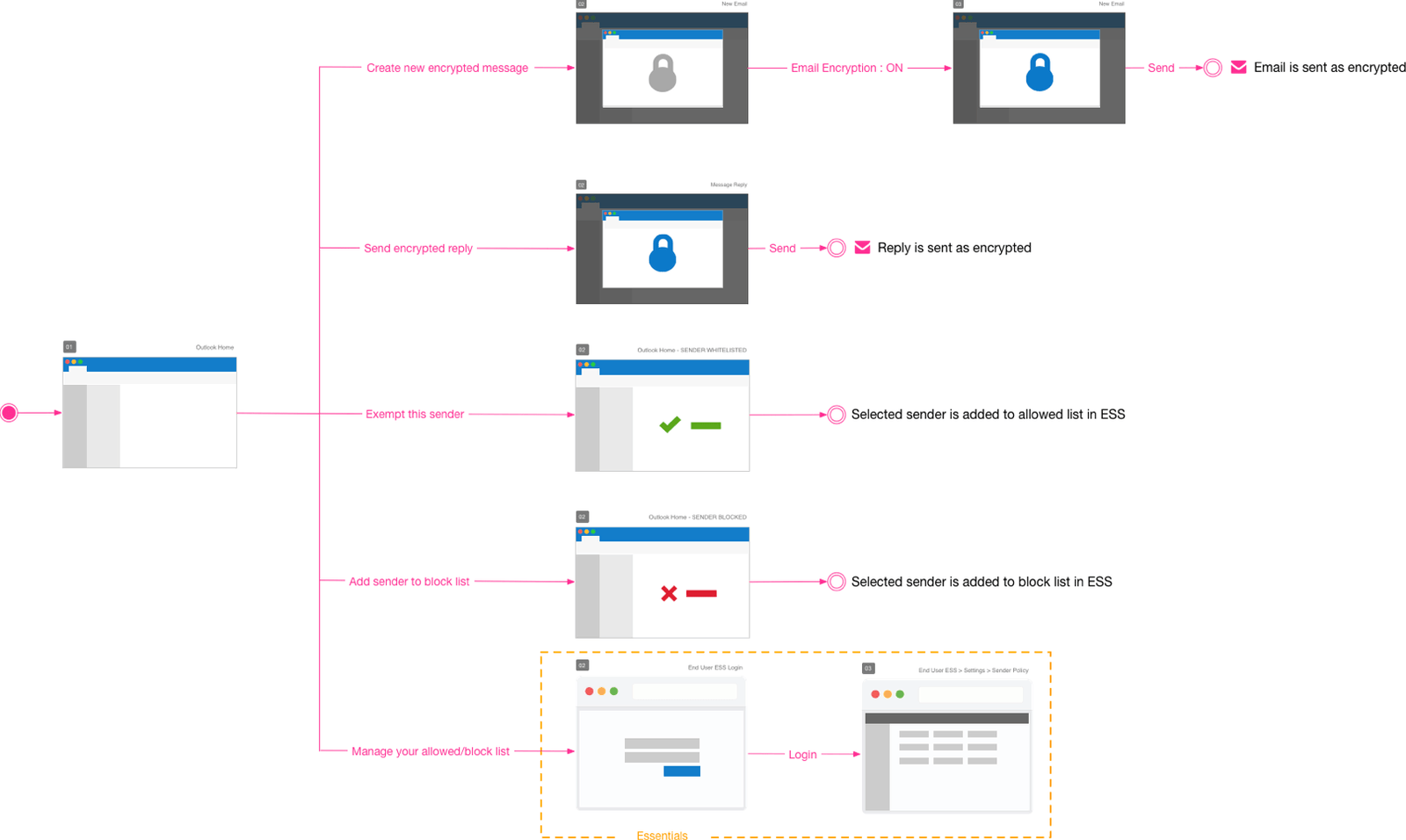
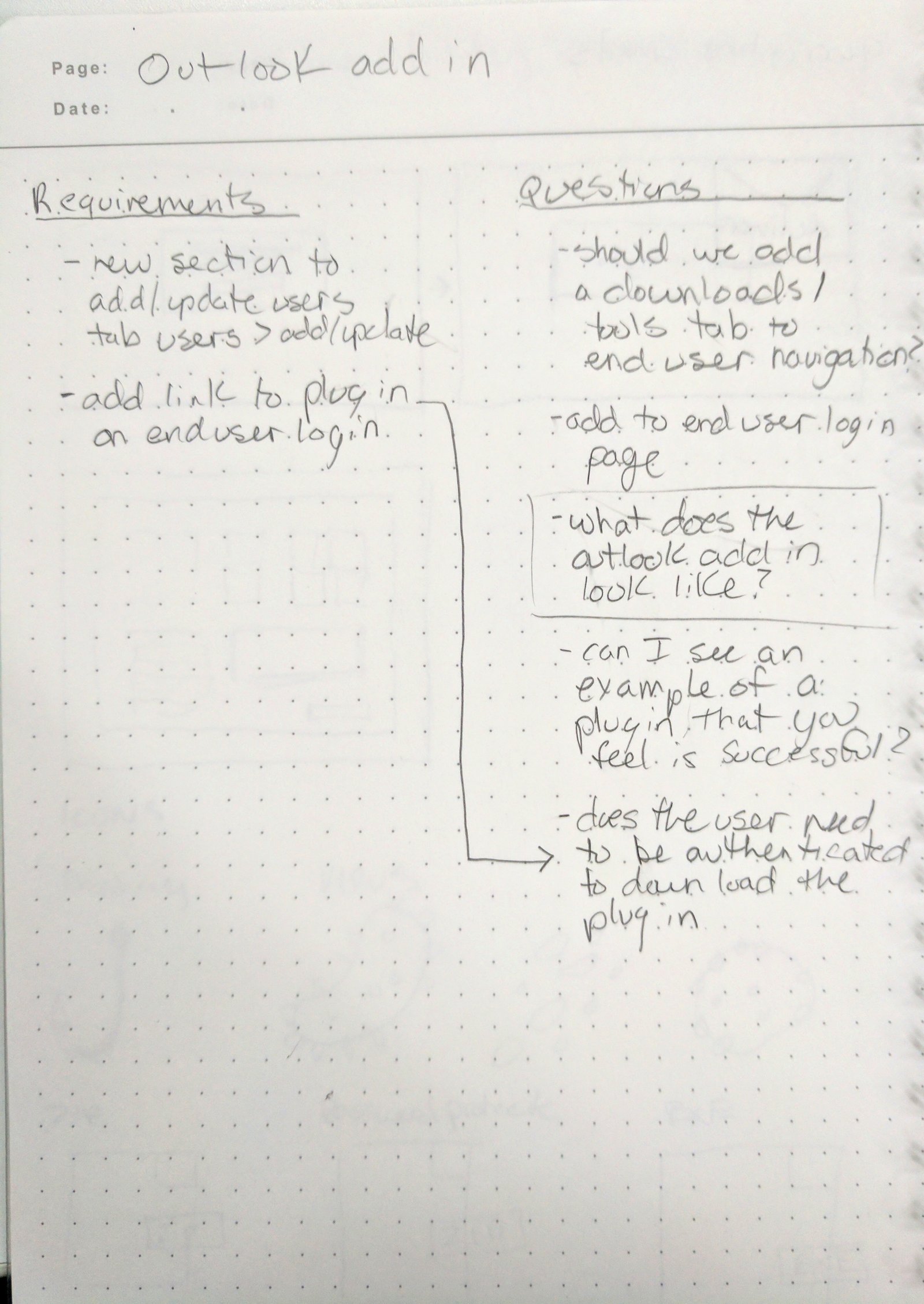
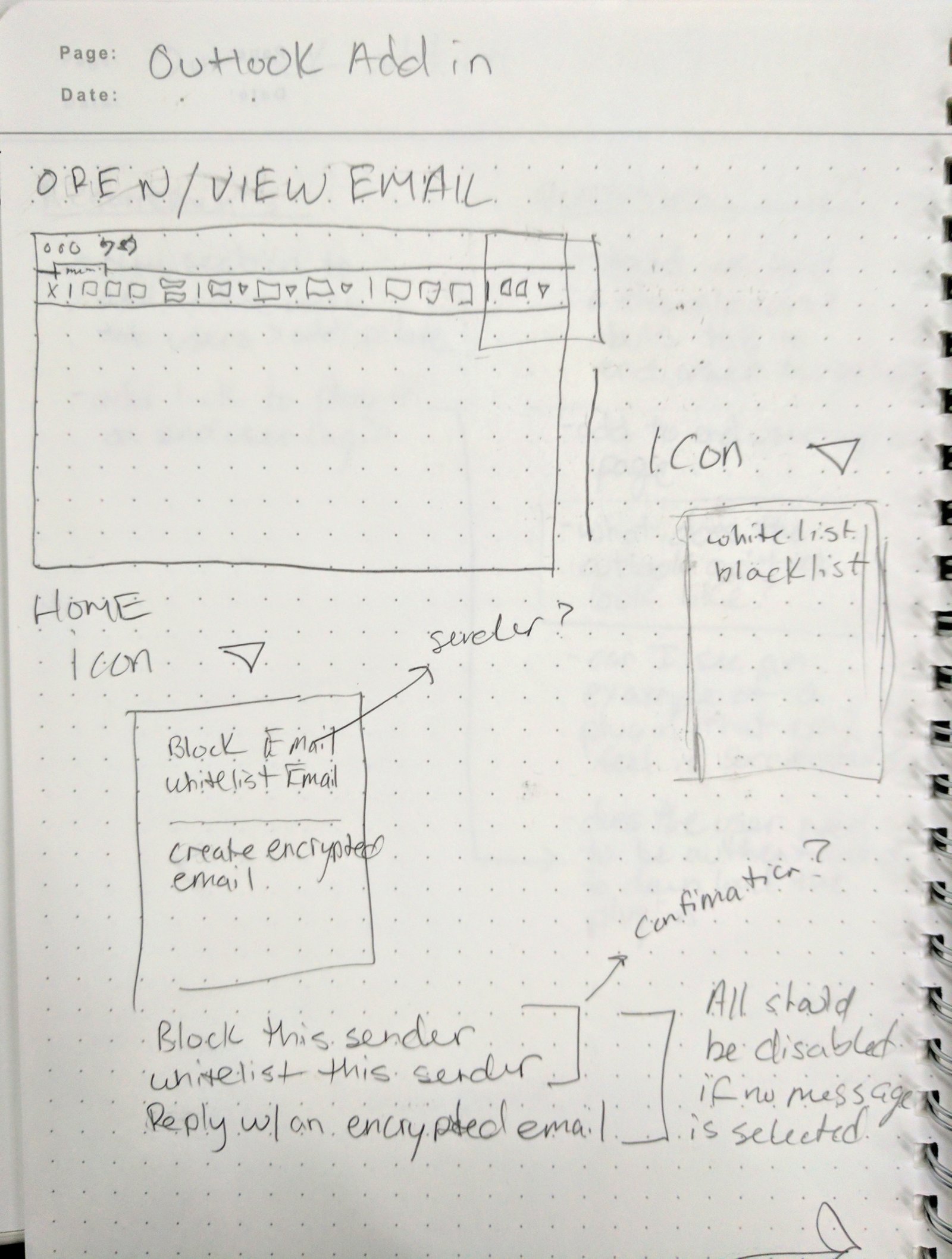
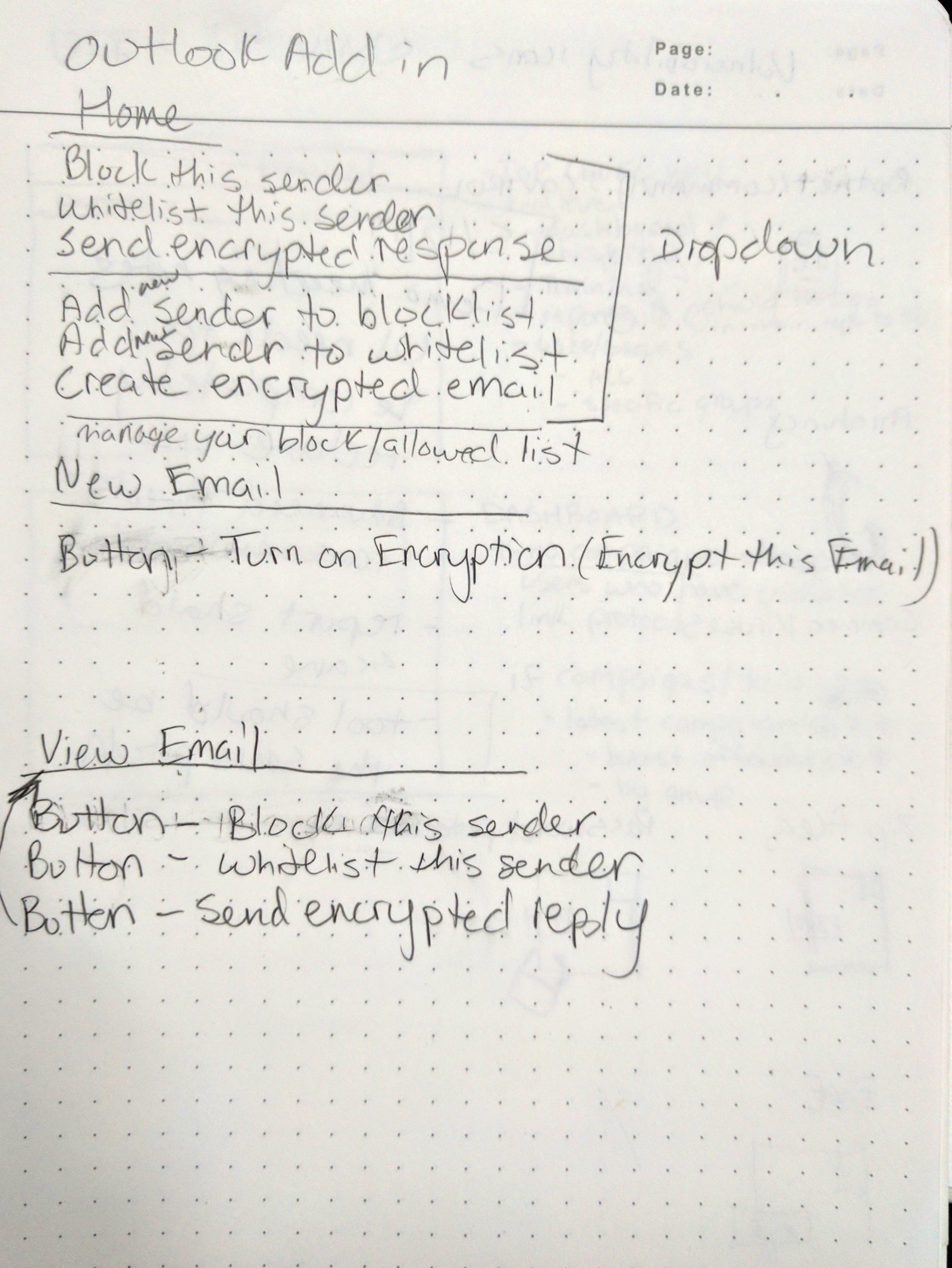
Once the problem was understood and insights gathered I started drafting some preliminary solutions by sketching and creating workflow diagrams to envision how users could complete the task.
Understanding technological and design constraints
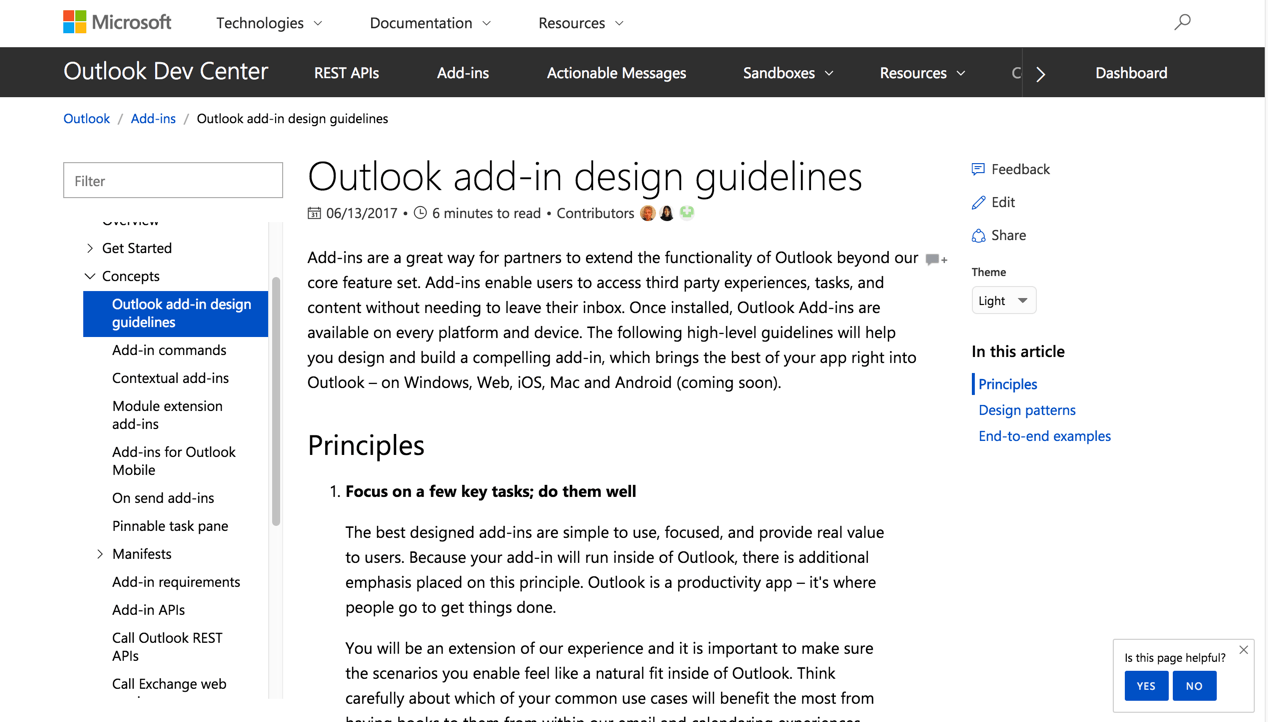
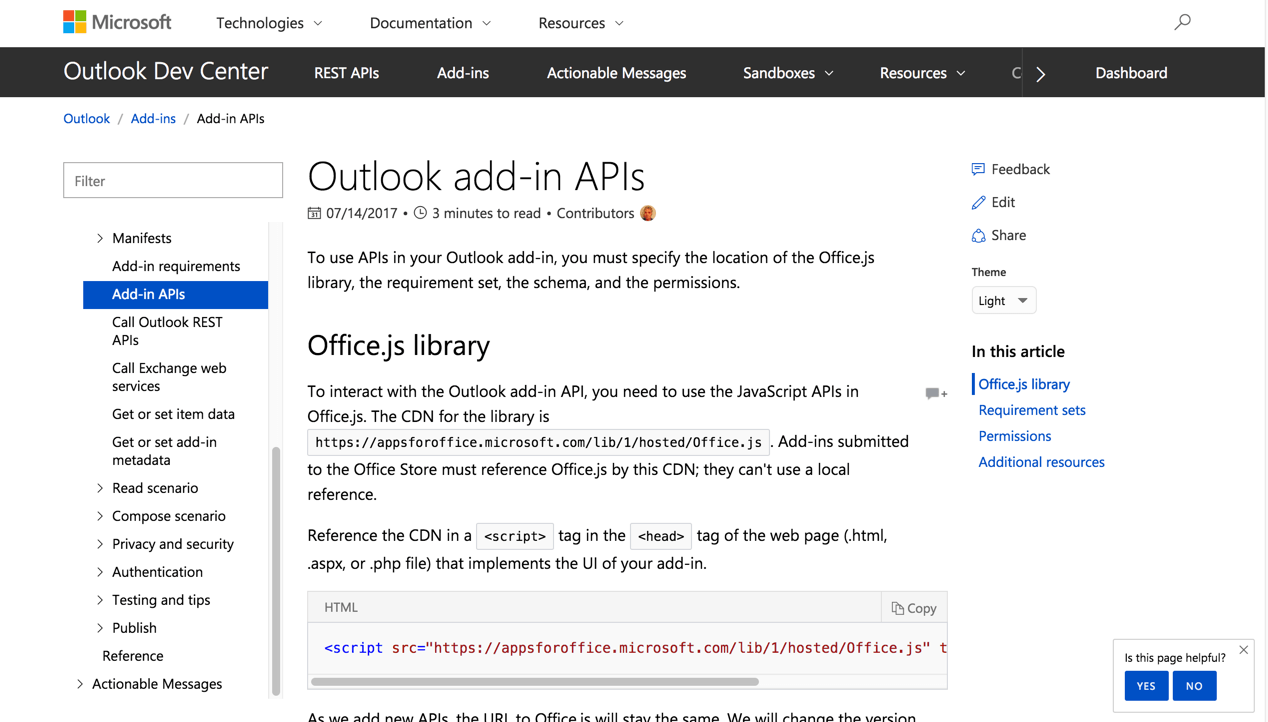
The engineering decision was made to use the new Microsoft Javascript API to build the new product. This would allow it to be compatible with PC, Mac and the web version of Outlook. I researched the guidelines for the API framework and the design guidelines from Microsoft to make sure we created a solution that felt familiar to users.
Testing, Validation and Iteration.
After some initial design work I settled on a particular design that I decided to prototype and show to users. I used Invision for the protoyping and did an initial round of testing with five users.

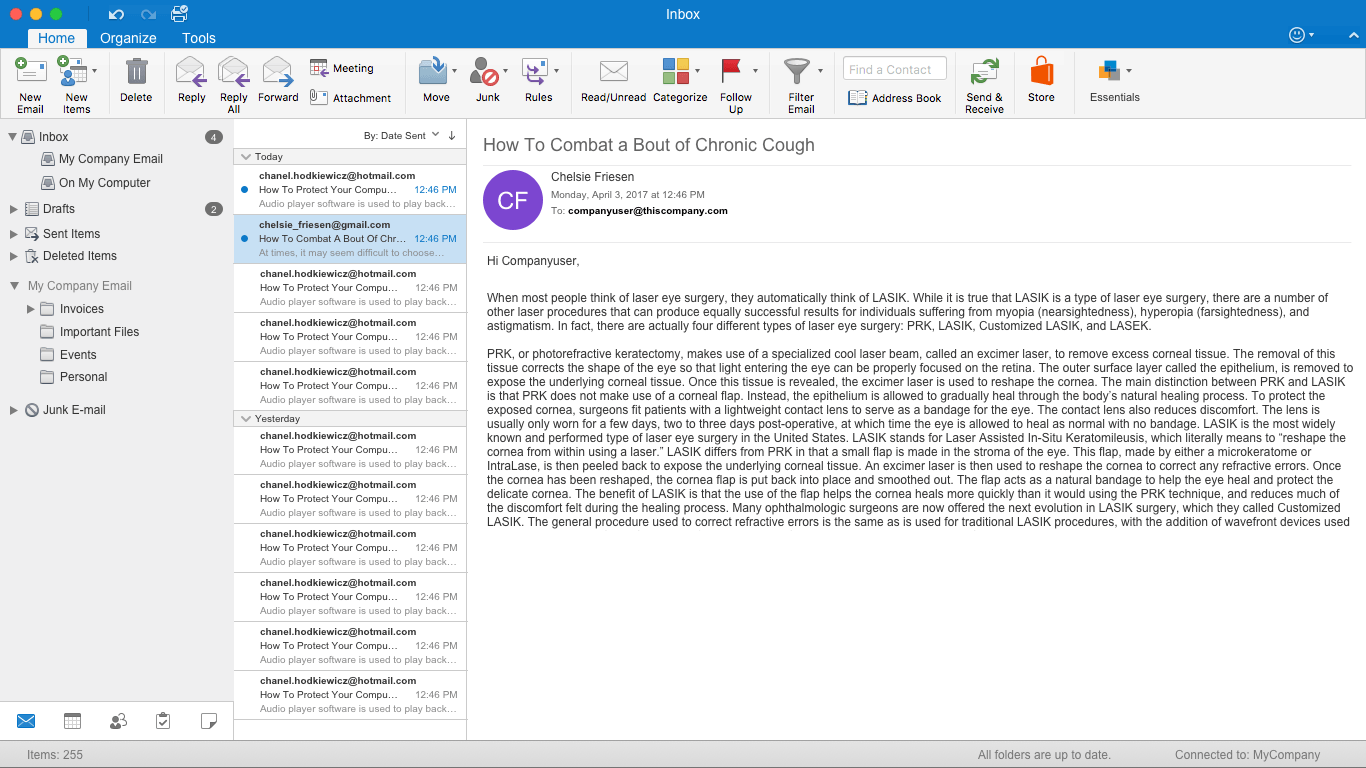
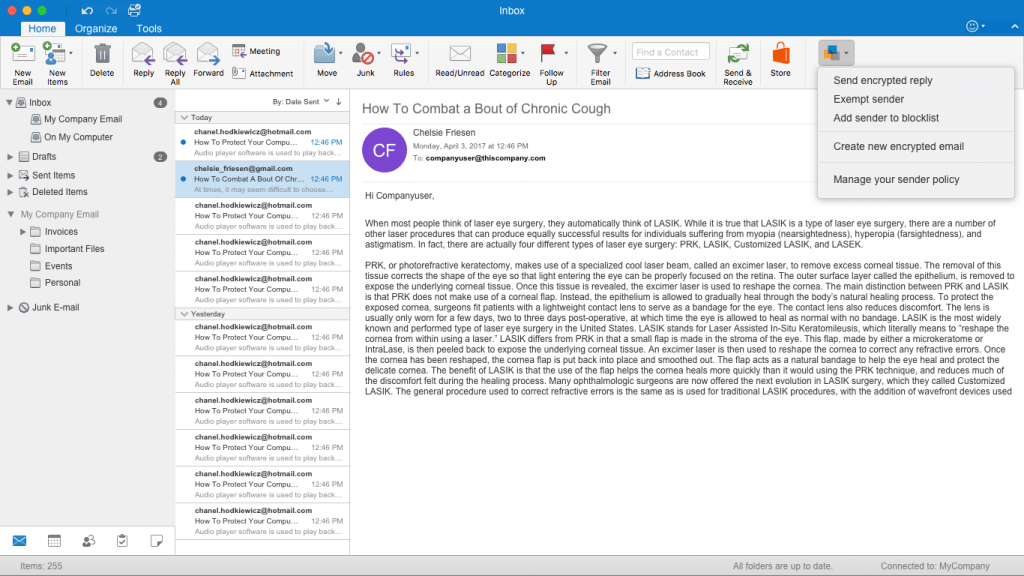
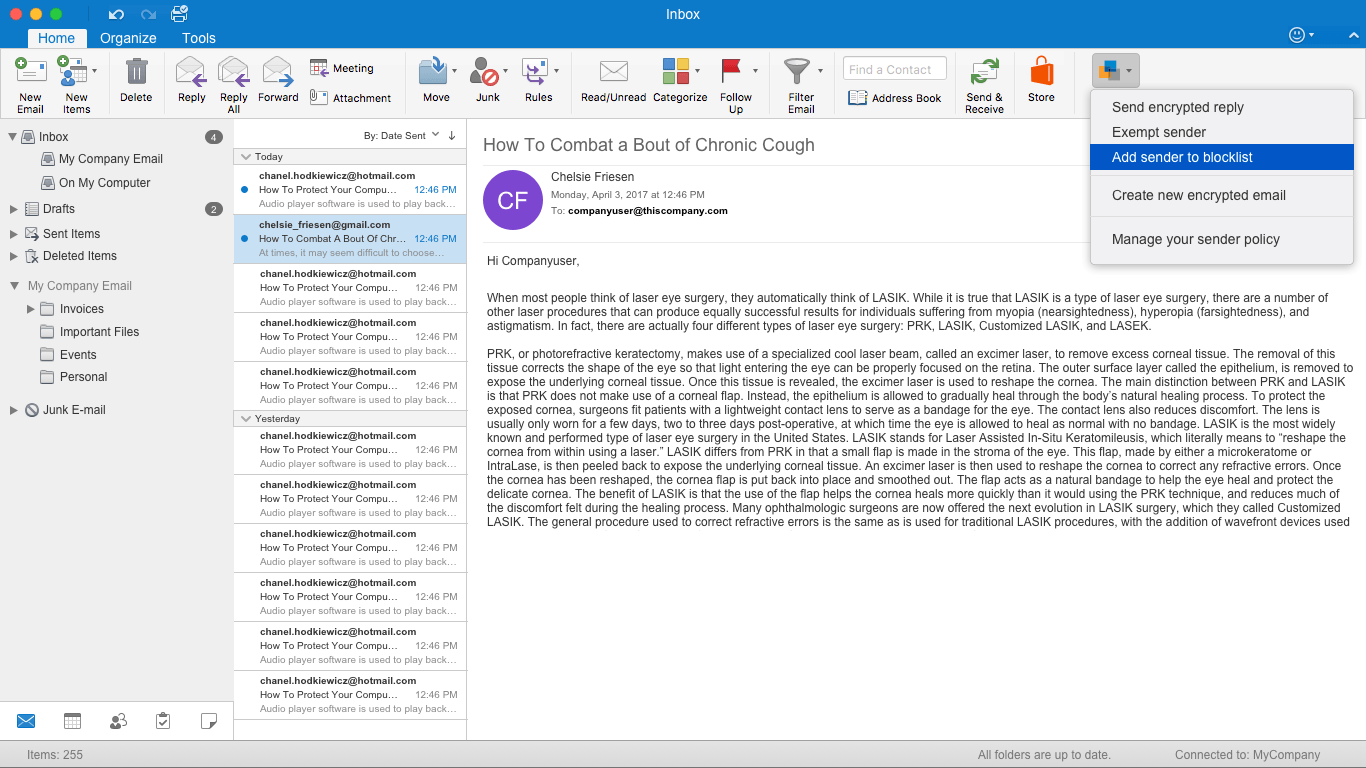
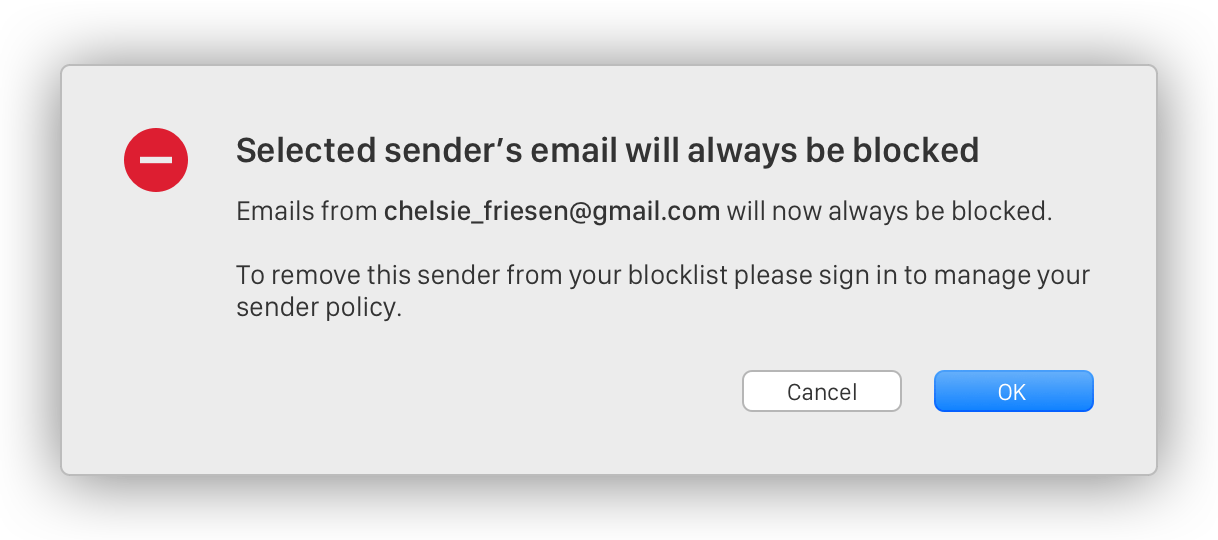
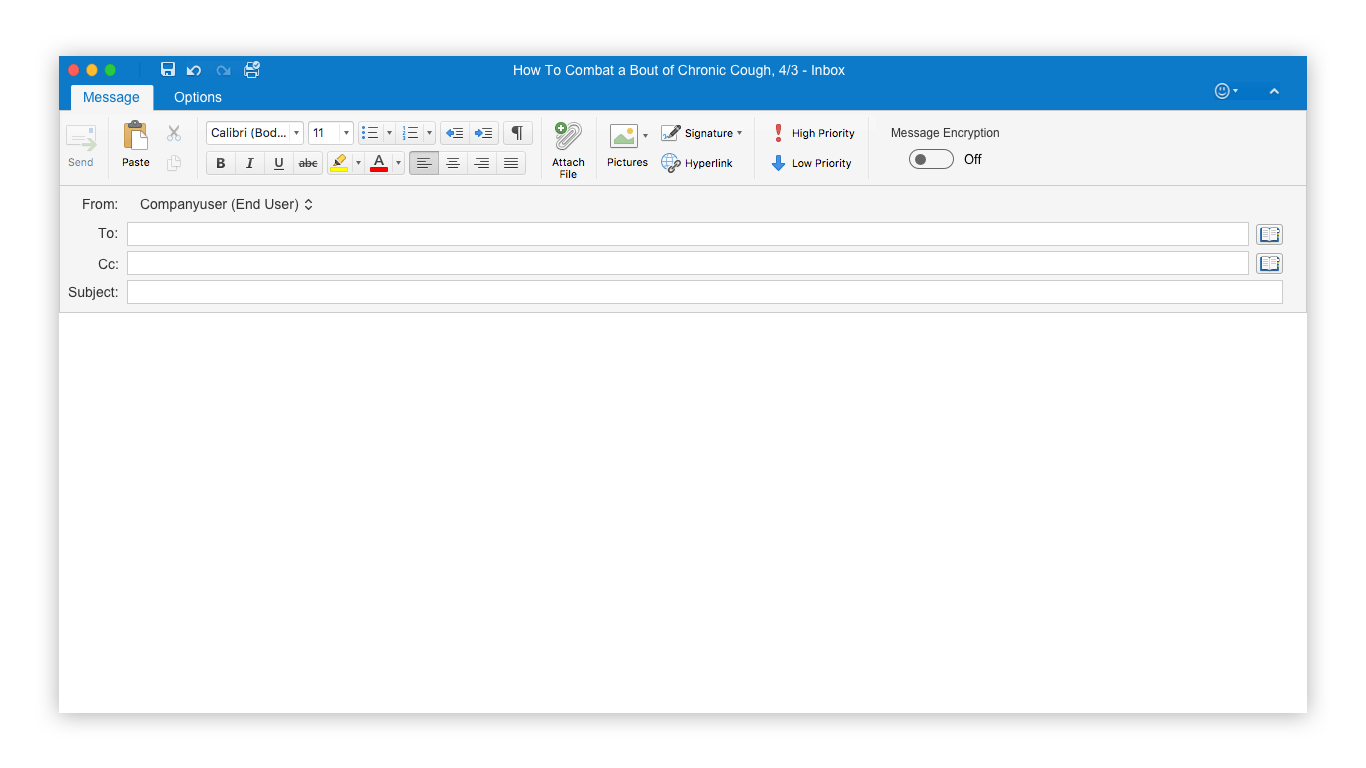
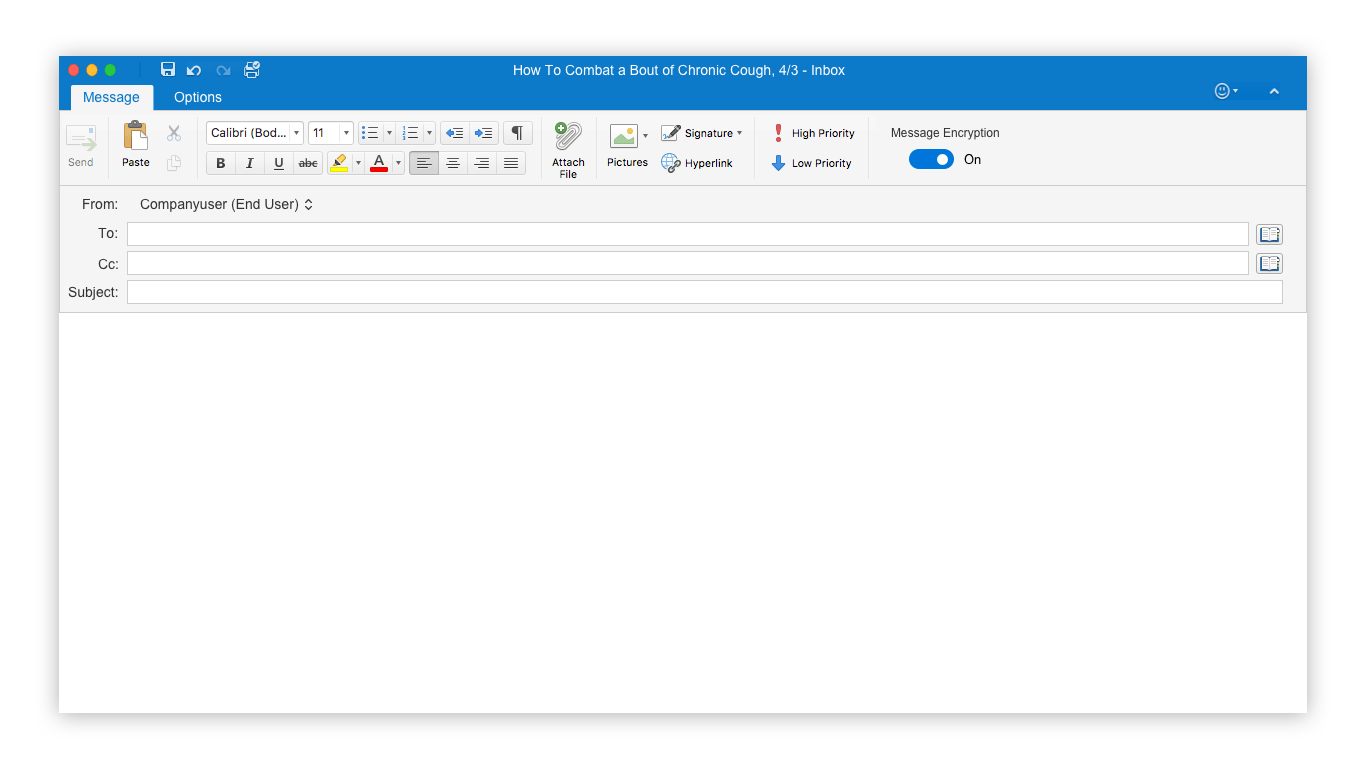
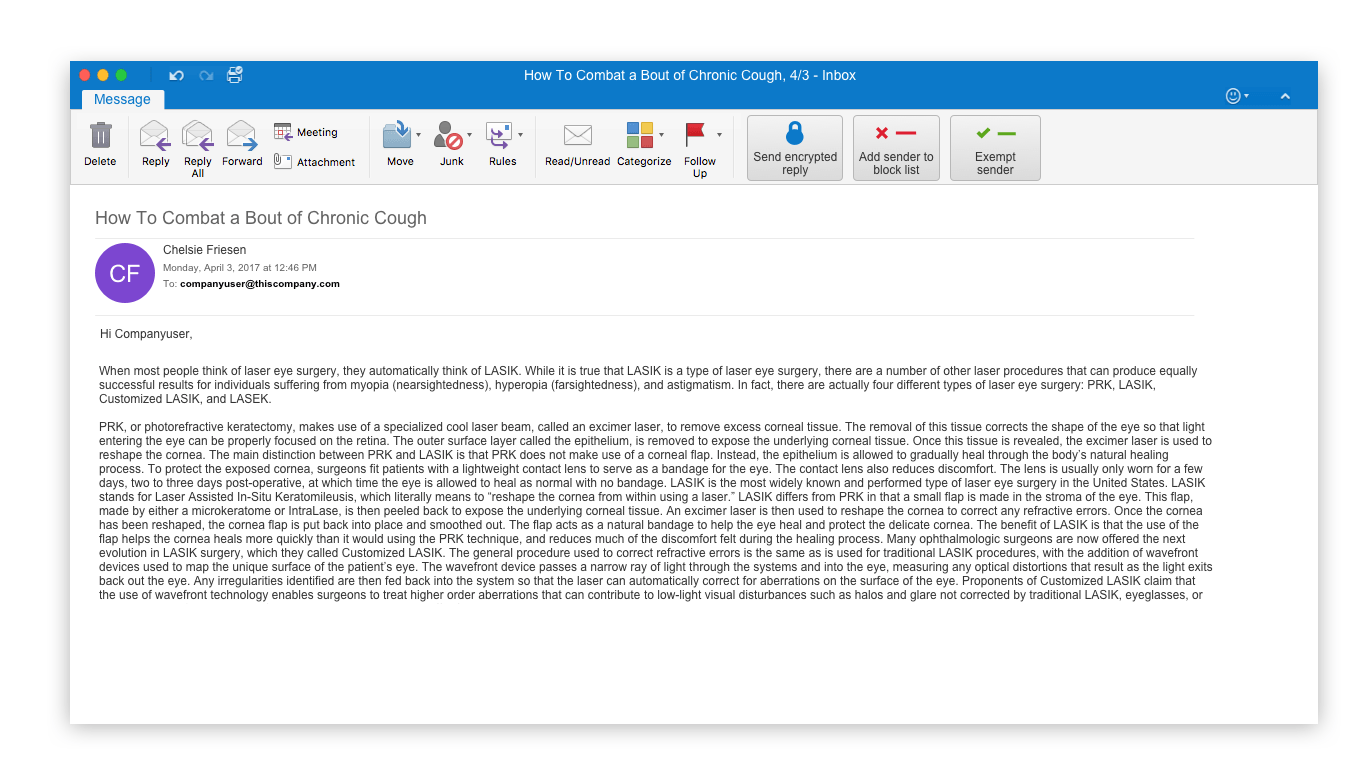
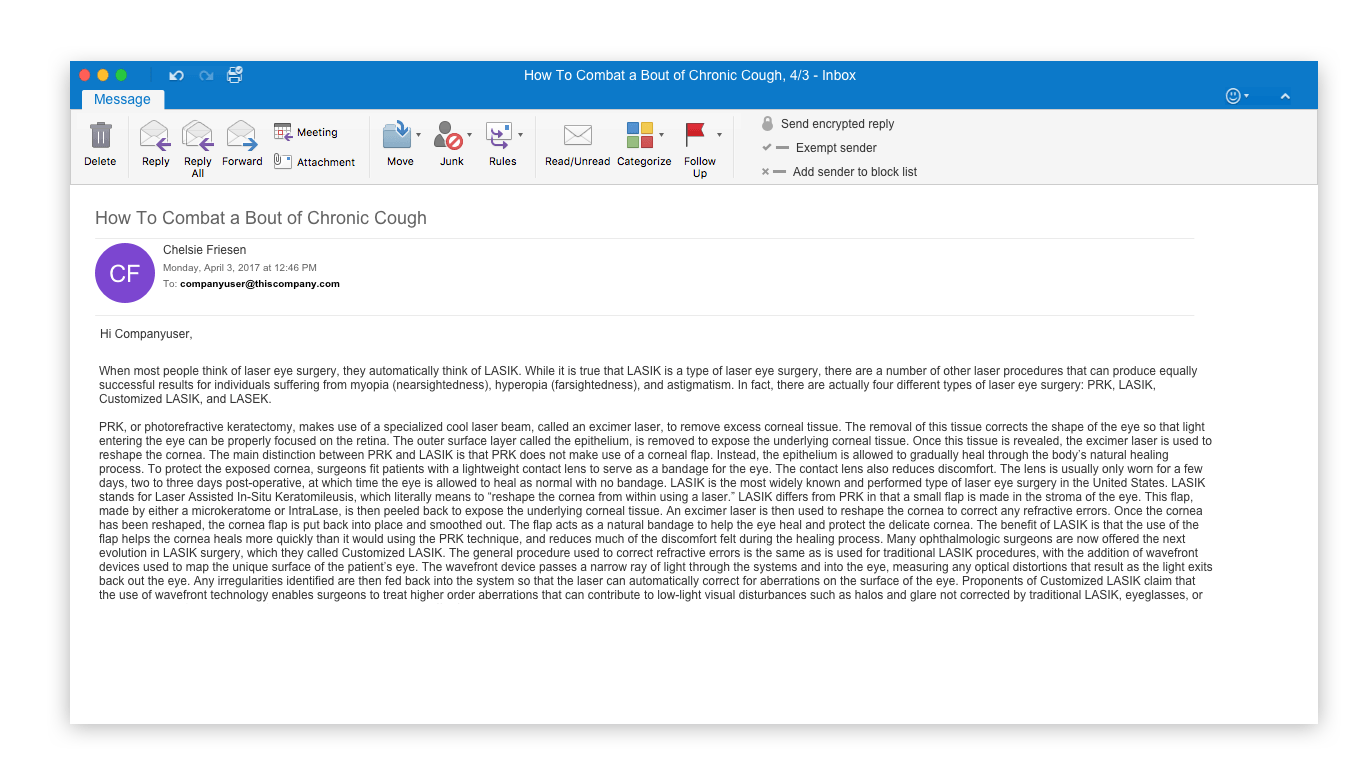
One of my theories for the initial design was to try and integrate the functionality in such a way that mimicked the Outlook interface. I felt that this was a good route to go, because end users were familiar with Microsoft’s products and patterns already. I tried to accomplish this with a dropdown when the Outlook Add-In button was clicked upon.
I also experimented with very large buttons with iconography and clear enabled states to show the user when a function was active or not.These theories fell apart though upon testing. The majority of users tested could not find the functionality as it did not stand out enough for them. It seemed that they needed something that felt more explicit.
More Favorable Results.
Once I discovered that my original theory of heavy integration was not successful I went back to similar Outlook Add-Ins and the design documentation from Microsoft and discovered that I could use a side panel to display the functionality. This side panel looked very explicit and would allow for a certain autonomy with the design of the Add-In that would not be possible with the previous implementation.
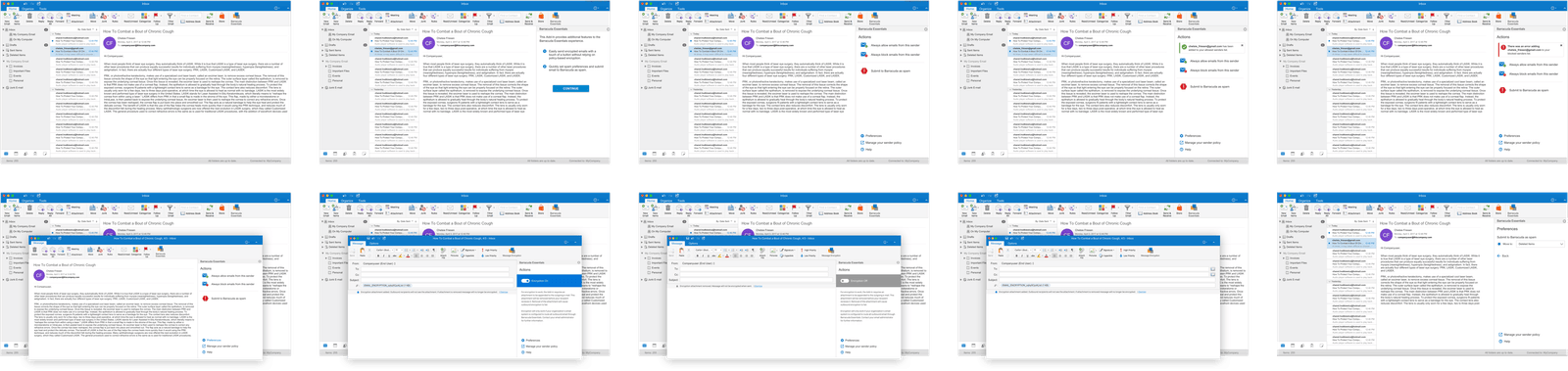
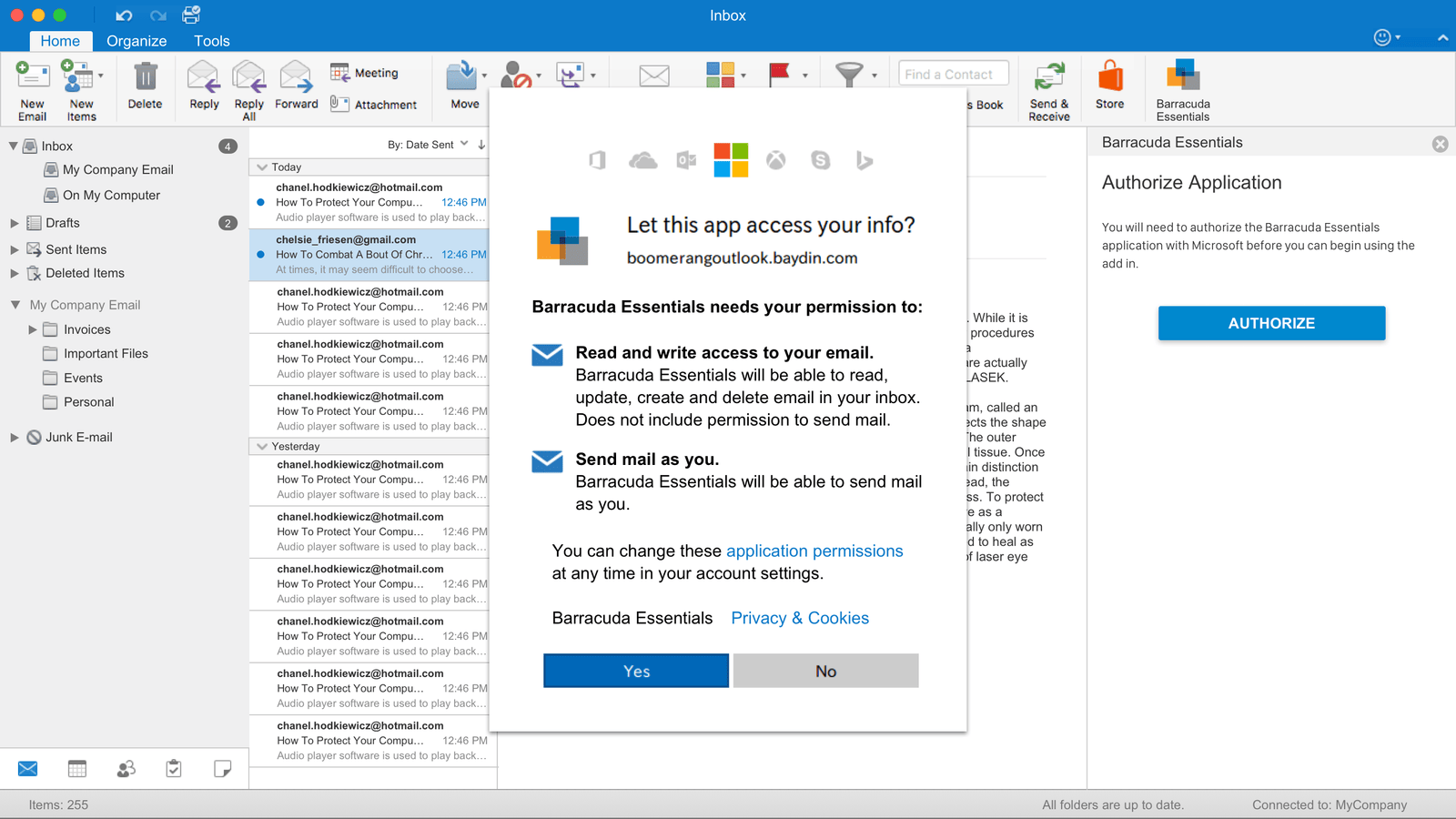
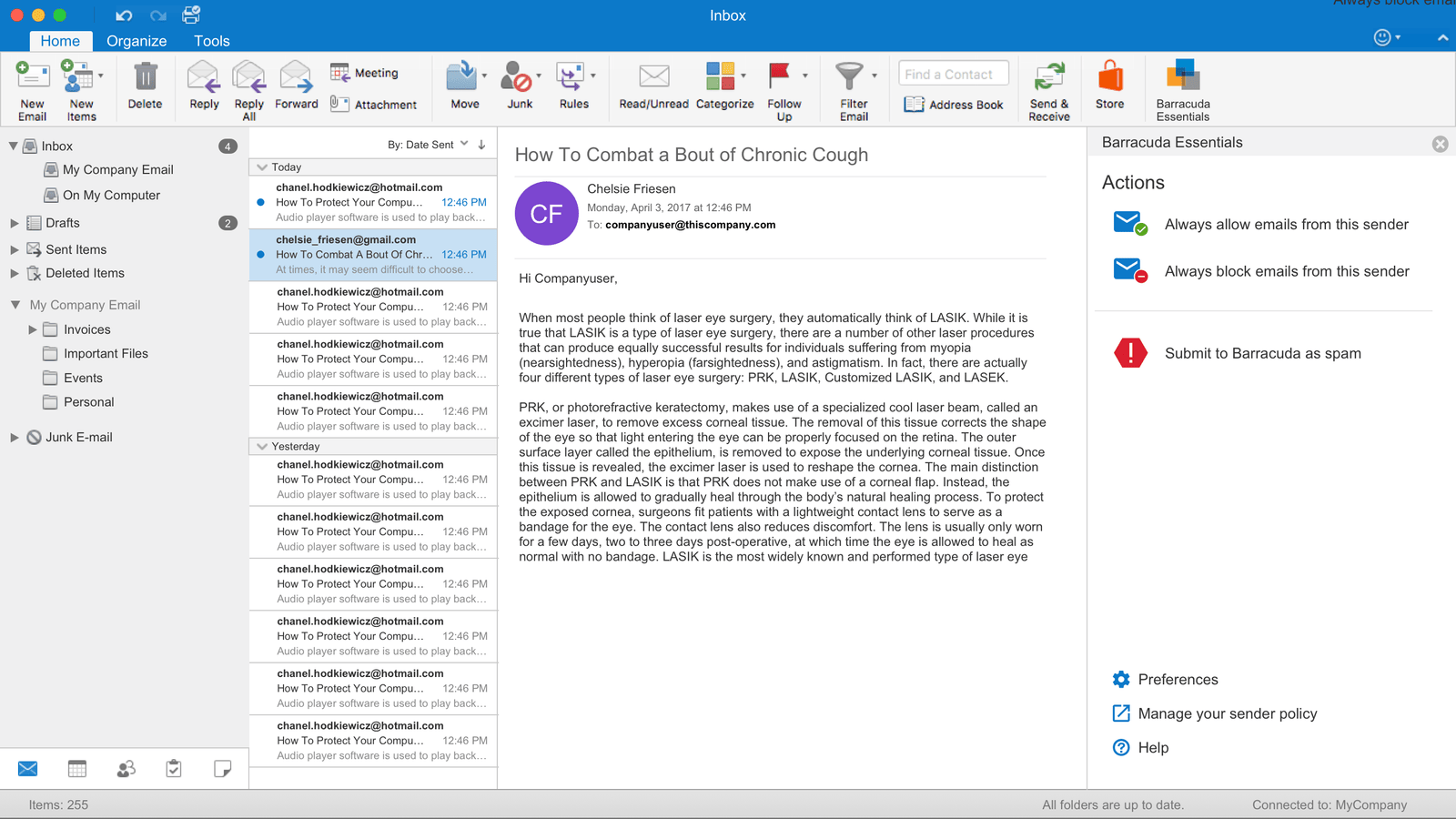
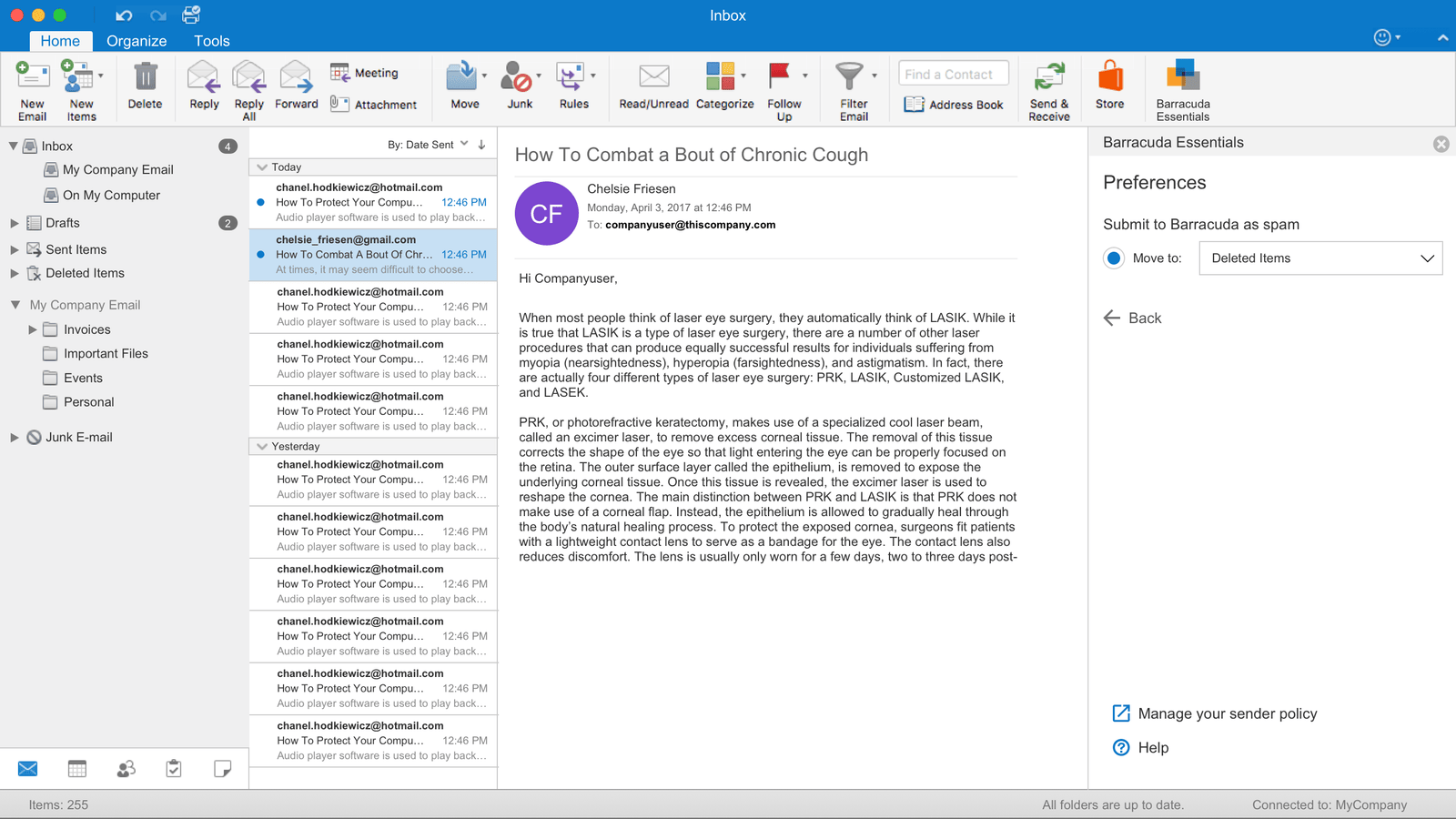
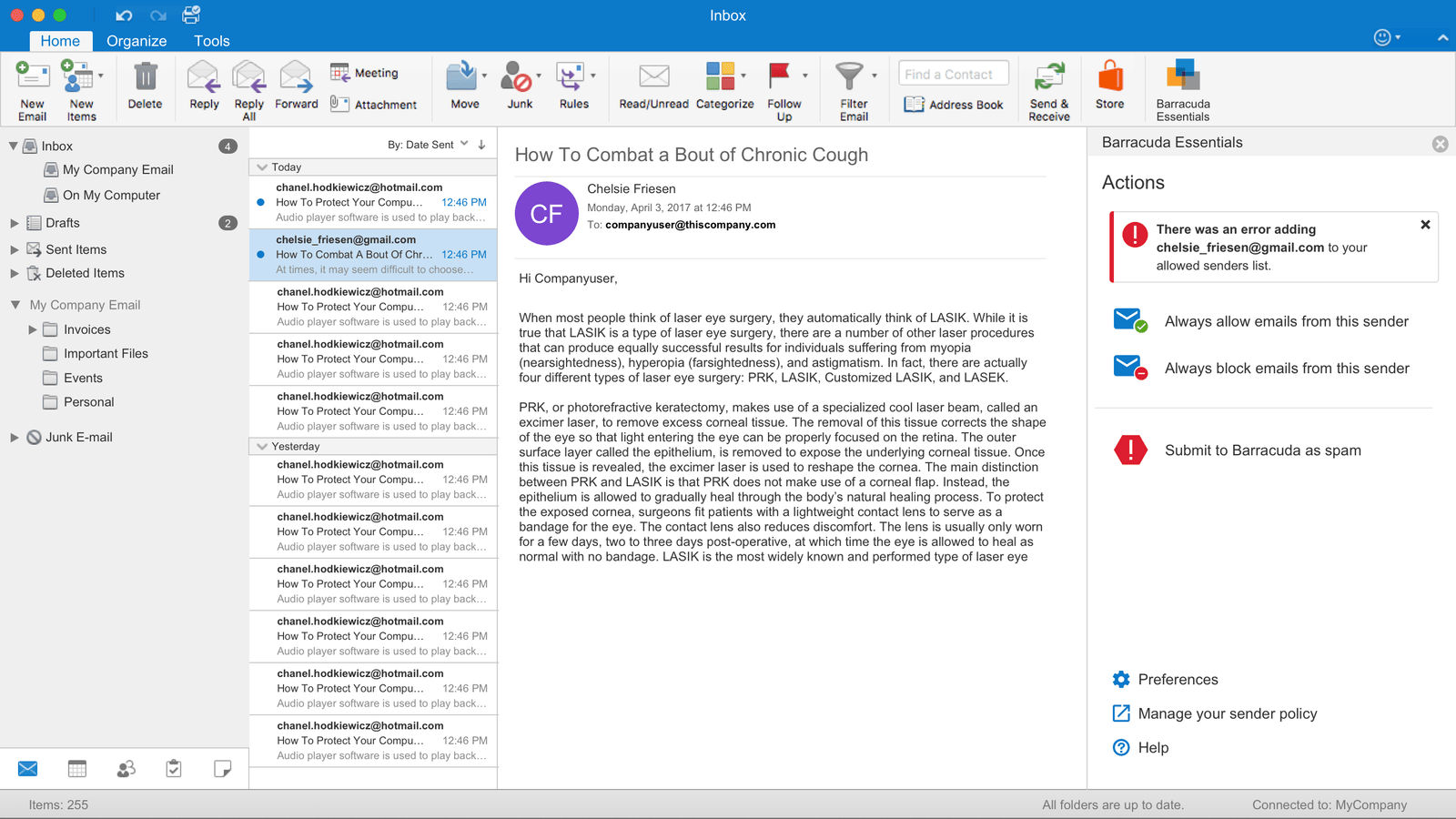
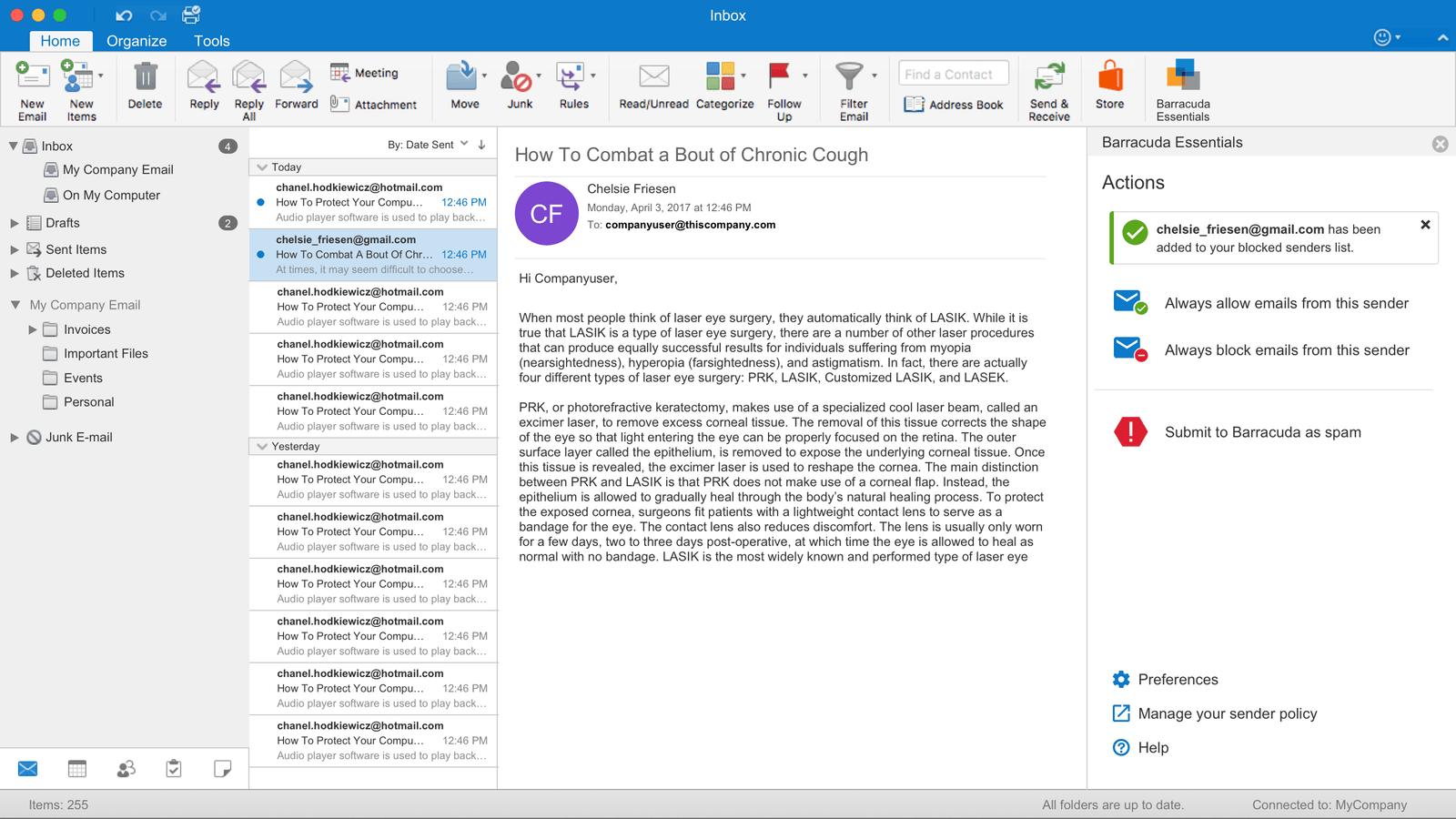
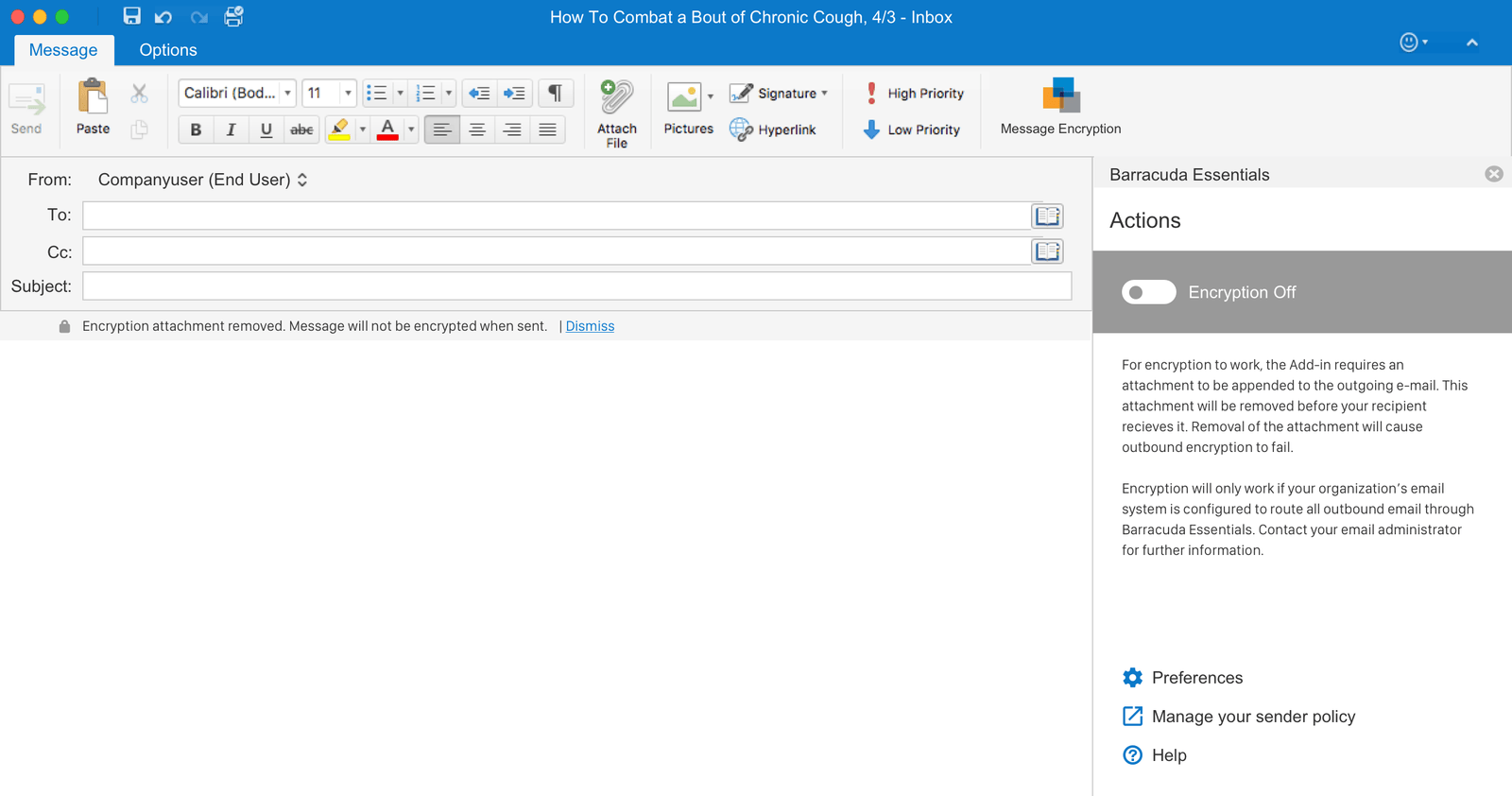
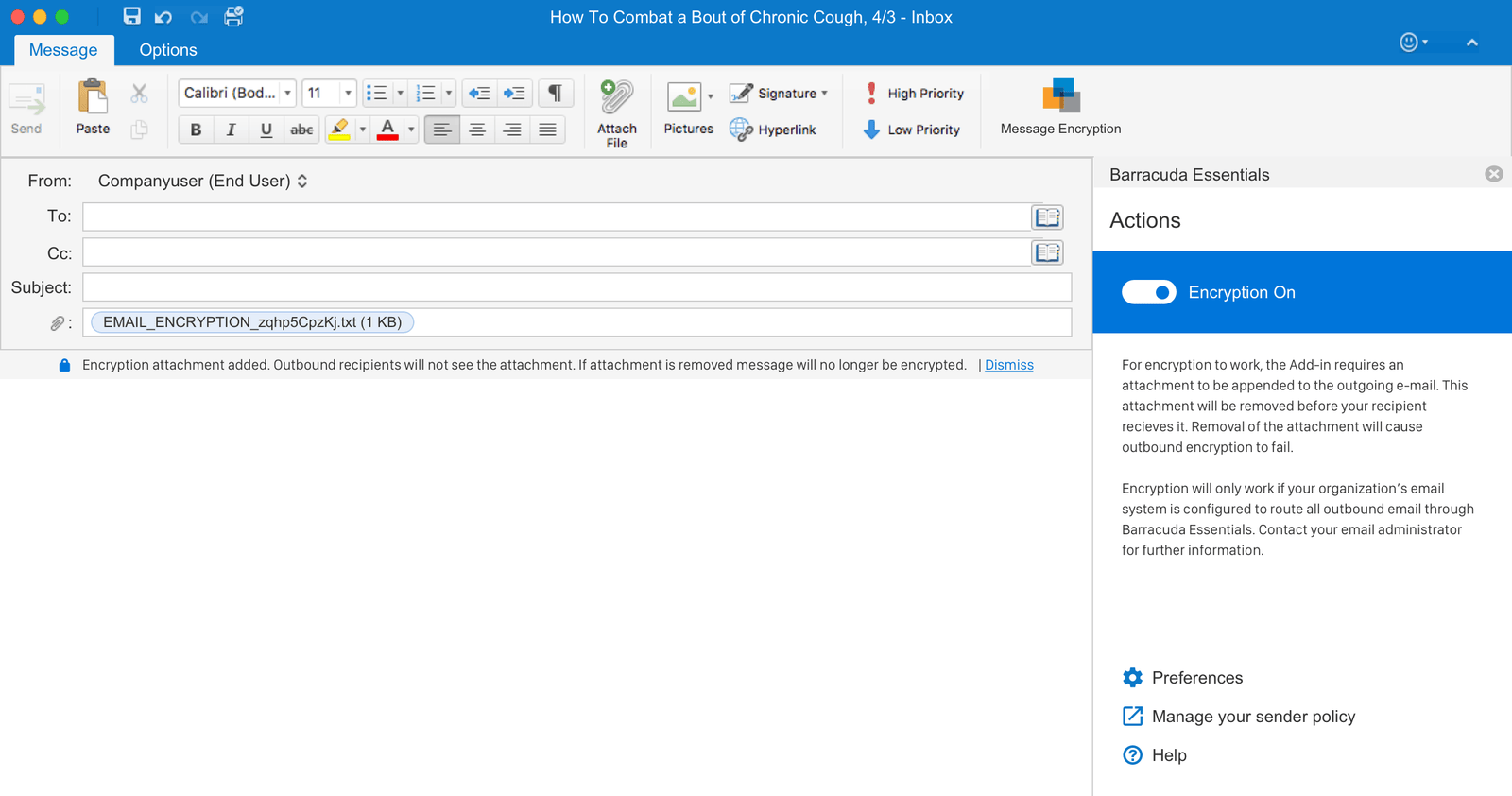
The new designs were presented to five users. To test them I gave them three scenarios.
- You are a doctor who is corresponding with an outside provider. You need to send an e-mail with sensitive information to that provider. Compose an e-mail and encrypt that e-mail with the add-in.
- That doctor has response to your e-mail. Respond back and make sure to encrypt the message to secure it.
- You just got an e-mail that looks like a spam e-mail offering you medication at a very discounted rate. Report that e-mail as spam through the add-in.
I observed that all users were able to perform the tasks with little difficulty. I made the recommendation to the product team that this felt like the design we should move forward with.
Feature Development and Launch.
The finalized designs and specs were passed to the engineering team and I worked with the lead engineers to solve any unforeseen design problems that came with implementation.
After completion the final application was submitted to the Microsoft AppSource store for users to download and for IT Administrators to enable via their Office 365 accounts.
The initial release of the Outlook Add-In received a very positive reception and many customers have expressed excitement about how this feature has helped ease their concerns in transitioning to the SaaS email solution offered by Barracuda.